

App Store Linking
Follow this guide to get your App Store account key for use with Apptonomy.
- Go to: App Store Connect API
Don’t see the App Store Connect API tab?
- Make sure the Team Keys tab is selected.
- Click Generate API Key or the Add (+) button.
- Enter a name for the key. The name is for your reference only and isn’t part of the key itself.
- Under Access, choose the role for the key. The simplest choice is Admin, which lets Apptonomy do everything for your app(s): publish your listing, pull revenue and proceeds, and pull your full performance analytics. If you’d rather grant narrower access, you can select specific roles instead — but check the table below first, because some features (App Analytics in particular) only work with an Admin key.
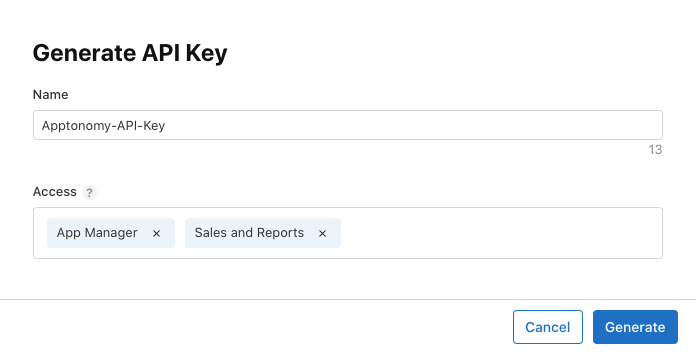
- Click Generate
- The new key appears in the Active keys list.
- Download the .p8 key file.
-
Copy the Key ID and Issuer ID for use with Apptonomy. (Issuer ID is at the top of the page)
-
Find your Vendor Number. Apptonomy needs this to ingest revenue and developer-proceeds data from Apple’s Sales & Trends API.
- Go to Payments and Financial Reports in App Store Connect.
- Your Vendor Number appears near the top of the page — a 6-10 digit numeric value.
- Copy it and paste it into the Vendor Number field when linking your App Store account in Apptonomy.
That’s it! Now return to Apptonomy and click the Connect App Store button. You’ll enter four things:
- App ID — your app’s numeric App Store ID. Apptonomy pre-fills this from the listing you selected when you created the project, so you usually don’t need to touch it.
- Key ID — the 10-character ID of the key you just generated.
- Issuer ID — the 36-character issuer ID from the top of the API Keys page.
- Vendor Number (optional) — needed only for revenue and proceeds data (see above).
Then upload the .p8 file and Apptonomy runs its validation checks.
Troubleshooting
Section titled “Troubleshooting”The API key tab isn’t visible, or key generation is blocked
Section titled “The API key tab isn’t visible, or key generation is blocked”Creating an App Store Connect API key requires an account with the Admin role. If you don’t see the Integrations → App Store Connect API area, ask an Admin on your Apple team to generate the key (with the Admin role) and share the Key ID, Issuer ID, and .p8 file with you.
Apptonomy reports a permission error after linking
Section titled “Apptonomy reports a permission error after linking”This almost always means the key doesn’t have the access it needs. Regenerate the key with the Admin role (the simplest fix — see the role table above for the exact roles each feature needs), then re-enter the new Key ID, Issuer ID, and .p8 file. You cannot change the roles on an existing key — you must generate a new one.
Revenue and proceeds data is missing
Section titled “Revenue and proceeds data is missing”The Vendor Number is optional for linking but required for revenue data. If your dashboards show listing and ranking data but no revenue, add your Vendor Number: open the project’s Store Link settings and edit the App Store credential. See finding your Vendor Number above.
Sales show up, but performance analytics stay empty
Section titled “Sales show up, but performance analytics stay empty”Your key can read Sales & Trends (units and proceeds) but not App Analytics. Apple only lets an Admin-role key set up App Analytics reporting, so a key with just App Manager or Sales pulls your revenue while leaving impressions, product page views, conversion, and downloads-by-source empty. Regenerate the key with the Admin role and re-link to fill in the analytics dashboards. Note that a brand-new connection also takes about a day before Apple’s first analytics data lands.