---
title: App Store Linking
description: How to link your Apptonomy project to App Store Connect.
---
Follow this guide to get your App Store account key for use with Apptonomy.
- You need the **Owner** or **Manager** role in your Apptonomy organization. See [Members & roles](/docs/team/members-and-roles).
1. Go to: App Store Connect API
Don't see the App Store Connect API tab?
:::caution[Admin Role Required For API Key Creation]
If the App Store Connect API tab is not visible, it means the signed-in account does not have admin permission (required).
Upon landing on App Store Connect API page you might need request access to the API before proceeding. This should take a few seconds if required.
:::
2. Make sure the **Team Keys** tab is selected.
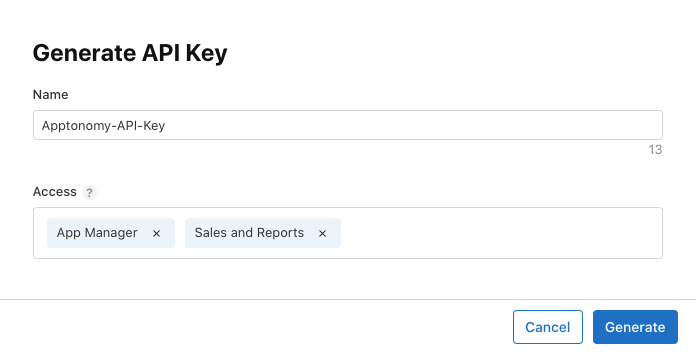
3. Click **Generate API Key** or the Add (**+**) button.
4. Enter a name for the key. The name is for your reference only and
isn't part of the key itself.
5. Under **Access**, choose the role for the key. The simplest choice is **Admin**, which lets Apptonomy do everything for your app(s): publish your listing, pull revenue and proceeds, **and** pull your full performance analytics. If you'd rather grant narrower access, you can select specific roles instead — but check the table below first, because some features (App Analytics in particular) only work with an **Admin** key.
:::note[Which role unlocks which Apptonomy feature]
Apple ties each capability to a role, so the role you pick decides what Apptonomy can do. Here is exactly what you get — and what you give up — with each choice:
| Apptonomy capability | App Store Connect role required |
| --- | --- |
| Publish & manage your listing — screenshots, title, subtitle, description, keywords | **App Manager** or **Admin** |
| Revenue Analytics — units sold and developer proceeds | **Sales**, **Finance**, or **Admin** (plus your [Vendor Number](#find-your-vendor-number)) |
| Performance analytics — impressions, product page views, conversion rate, downloads by source | **Admin** only |
**Why Admin for analytics?** Apple only lets an **Admin**-role key *set up* App Analytics reporting. A key with just App Manager or Sales gets a "forbidden" error when Apptonomy tries to turn analytics on, so those dashboards stay empty. Granting **Admin** avoids that and covers every capability above in one step.
Read more about roles and permissions in App Store Connect here.
:::
6. Click **Generate**
7. The new key appears in the **Active** keys list.
8. Download the **.p8** key file.
:::caution[One-time Download]
The key file is only available to download once. Keep it secure and revoke/regenerate it if it becomes lost or compromised.
:::
9. Copy the **Key ID** and **Issuer ID** for use with Apptonomy. (Issuer
ID is at the top of the page)
10. Find your **Vendor Number**. Apptonomy needs this to ingest revenue and developer-proceeds data from Apple's Sales & Trends API.
1. Go to Payments and Financial Reports in App Store Connect.
2. Your Vendor Number appears near the top of the page — a 6-10 digit numeric value.
3. Copy it and paste it into the **Vendor Number** field when linking your App Store account in Apptonomy.
:::note[Why Apptonomy Needs Your Vendor Number]
Apple's Sales & Trends API requires this identifier on every request to disambiguate accounts that may have access to multiple vendor IDs. Without it, your App Store will link successfully but you won't see revenue or proceeds data in your Apptonomy dashboards.
:::
That's it! Now return to Apptonomy and click the **Connect App Store** button. You'll enter four things:
- **App ID** — your app's numeric App Store ID. Apptonomy pre-fills this from the listing you selected when you created the project, so you usually don't need to touch it.
- **Key ID** — the 10-character ID of the key you just generated.
- **Issuer ID** — the 36-character issuer ID from the top of the API Keys page.
- **Vendor Number** (optional) — needed only for revenue and proceeds data (see above).
Then upload the **.p8** file and Apptonomy runs its validation checks.
:::note[Key File Security]
The p8 file contains a key that can be used to access your App Store Connect account and make changes (e.g. submit screenshots and app store descriptions, etc). Apptonomy treats the p8 key as highly sensitive information. The file is encrypted in the browser before uploading via SSL/TLS then it is re-encrypted and stored according to best practices.
[Read about how Apptonomy secures keys](/docs/store-setup/credential-security)
:::
## Troubleshooting
### The API key tab isn't visible, or key generation is blocked
Creating an App Store Connect API key requires an account with the **Admin** role. If you don't see the **Integrations → App Store Connect API** area, ask an Admin on your Apple team to generate the key (with the **Admin** role) and share the Key ID, Issuer ID, and .p8 file with you.
### Apptonomy reports a permission error after linking
This almost always means the key doesn't have the access it needs. Regenerate the key with the **Admin** role (the simplest fix — see the role table above for the exact roles each feature needs), then re-enter the new Key ID, Issuer ID, and .p8 file. You cannot change the roles on an existing key — you must generate a new one.
### Revenue and proceeds data is missing
The **Vendor Number** is optional for linking but required for revenue data. If your dashboards show listing and ranking data but no revenue, add your Vendor Number: open the project's **Store Link** settings and edit the App Store credential. See [finding your Vendor Number](#find-your-vendor-number) above.
### Sales show up, but performance analytics stay empty
Your key can read Sales & Trends (units and proceeds) but not App Analytics. Apple only lets an **Admin**-role key set up App Analytics reporting, so a key with just App Manager or Sales pulls your revenue while leaving impressions, product page views, conversion, and downloads-by-source empty. Regenerate the key with the **Admin** role and re-link to fill in the analytics dashboards. Note that a brand-new connection also takes about a day before Apple's first analytics data lands.
## Related
- [Google Play Linking](/docs/store-setup/playstore-credential)
- [Credential Security](/docs/store-setup/credential-security)
- [Apple's API key documentation](https://developer.apple.com/documentation/appstoreconnectapi/creating-api-keys-for-app-store-connect-api)